
There are many issues that can be resolved by resetting your Amazon Fire TV Stick in case it is not running fast, freezing, or just not functioning. The reset will restore your gadget to its initial factory settings, as when the first time you purchased it. In this blog, you will know how to reset Amazon Fire TV Stick simply and easily.
Why You May Need to Reset Amazon Fire TV Stick
Before we learn how to reset Amazon Fire TV Stick, it is important to understand why you might need to do it. Here are some common reasons:
- Your device is slow or lagging
- Apps are crashing or not opening
- Wi-Fi connection issues
- The screen is frozen
- You are selling or giving away your device
Resetting can fix many of these issues quickly.
Things to Know Before Resetting
Before you reset your Fire TV Stick, keep these points in mind:
- All your apps and data will be deleted
- You will need to sign in again with your Amazon account
- Settings will go back to default
So, make sure you remember your login details before you proceed.
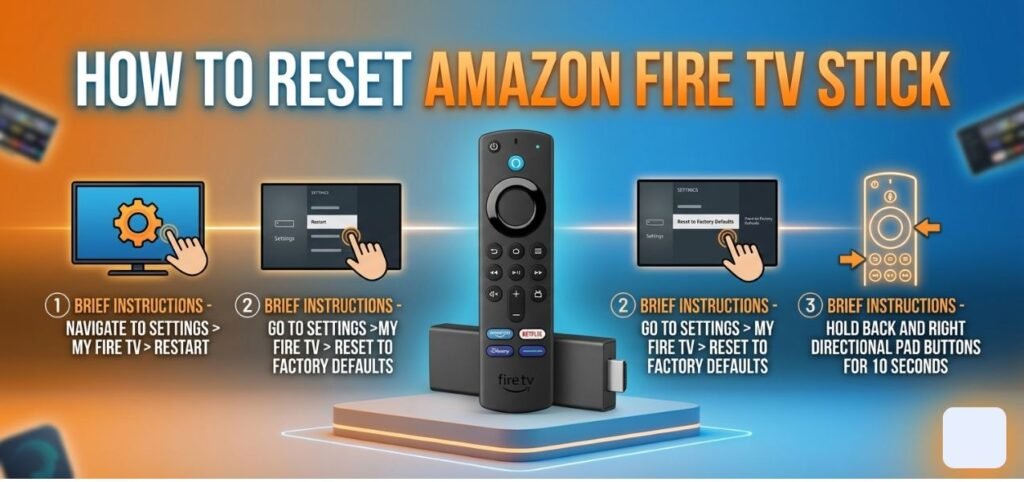
Simple Guide How to Reset Amazon Fire TV Stick
Method 1: Reset Using Settings
This is the easiest way to reset Amazon Fire TV Stick.
Steps
- Turn on your TV and Fire TV Stick
- Go to the Settings menu from the home screen
- Scroll right and select My Fire TV
- Click on Reset to Factory Defaults
- A warning message will appear
- Select Reset
Your device will now begin the reset process. It may take a few minutes. Once done, your Fire TV Stick will restart like a new device.
Method 2: Reset Using Remote Buttons
If your screen is frozen or you cannot access settings, this method is helpful.
Steps
- ress and hold the Back button and the Right button on your remote
- Hold both buttons for about 10 seconds
- A reset message will appear on the screen
- Select Reset or wait for it to reset automatically
This is a quick way to reset Amazon Fire TV Stick without using the menu.
Method 3: Reset Without Remote
If you have lost your remote, don’t worry. You can still reset your Fire TV Stick.
Option 1: Use the Fire TV App
- Download the Amazon Fire TV app on your smartphone.
- Connect your phone to the same Wi-Fi network.
- Open the app and connect to your Fire TV Stick.
- Use the app as a remote
- Follow the steps in Method 1 to reset
Option 2: Use a New Remote
You can buy a new compatible remote and pair it with your Fire TV Stick to reset it.
What Happens After Reset?
After resetting, your Fire TV Stick will:
- Restart automatically
- Show the welcome/setup screen
- Ask for your Amazon account login
- Require internet connection setup
It will be like using a brand-new device.
Tips to Set Up Again
Once you reset your device, follow these tips:
- Connect to a strong Wi-Fi network
- Sign in with your Amazon account
- Install only the apps you need
- Update your device software
This will help your Fire TV Stick run smoothly again.
When Not to Reset
Resetting is helpful, but you should avoid it if:
- The issue is minor and can be fixed by restarting
- Your internet connection is the real problem
- You forgot your Amazon account details
In such cases, try simple troubleshooting first.
Quick Troubleshooting Before Reset
Before doing a full reset, try these:
- Restart your Fire TV Stick
- Check your internet connection
- Clear app cache
- Update software
Sometimes these steps can fix the issue without resetting.
Final Thoughts
You have now been informed on how to reboot Amazon Fire TV Stick in various ways. Resetting is a potent remedy to most of the common issues, yet it is to be applied with caution. Simple fixes should always be considered first, and only reset in case of need.
With the above simple steps you could easily restore your Fire TV Stick to normal working condition. It is fast and easy whether you use the settings menu, remote buttons, or a mobile app.
This topic really needed to be talked about. Thank you.
I appreciate your unique perspective on this.
You’ve built a lot of trust through your consistency.
This post gave me a new perspective I hadn’t considered.
Thanks for making this so reader-friendly.
I learned something new today. Appreciate your work!
This helped clarify a lot of questions I had.
You’ve clearly done your research, and it shows.
This gave me a whole new perspective. Thanks for opening my eyes.
Your content never disappoints. Keep up the great work!
You bring a fresh voice to a well-covered topic.
I enjoyed every paragraph. Thank you for this.
I’ve gained a much better understanding thanks to this post.
You made some excellent points here. Well done!